In early 2026, Meta reportedly created an internal token-spend leaderboard called “Claudeonomics,” ranking employees by how many AI tokens they consumed.
The predictable result was enormous consumption. When token usage becomes the metric, people optimize for token usage.
Meta may have been an extreme example, but the underlying idea was everywhere for a while. Across the technology industry, employees were being encouraged to experiment aggressively with AI, agents, automation, and new workflows.
Use AI.
That was often the entire strategy.
Perhaps you had a similar experience. I know I did.
Riding the Adoption Wave
I was happy to take my organization up on the offer.
These were powerful new tools, becoming more capable almost weekly. I wanted to understand them, so I dove in.
My workflows changed repeatedly. I adopted tools, abandoned others, experimented with models and agent harnesses, learned MCPs and Skills, and started integrating AI into the infrastructure and operational work I was already doing.
The objective seemed obvious:
These tools aren’t going away. Learn how to use them.
For me, that meant leaning even harder into Infrastructure-as-Code and AI-assisted operations. Services became reproducible installs committed to Git, documented, idempotent, and accompanied by health checks and operational tooling.
AI wasn’t replacing the work. It was changing how I approached the work.
And for a while, many organizations seemed to want exactly that.
The mythical “10x engineer” was back, this time carrying a token budget.
Then somebody saw the bill.
Coin a Phrase “Token-Min’ing”
Fast-forward a few months.
Token budgets were reduced. Monthly quotas appeared. Approved-model lists became smaller. Suddenly the employees who had been encouraged to integrate AI deeply into their workflows were being asked to economize.
Thus began the age of token-min’ing.
Tools and techniques appeared specifically to reduce context, shrink prompts, compress agent communication, and squeeze more work out of fewer tokens.
And that is not inherently bad.
Frontier models cost real money. Efficient use of them matters. Learning how to accomplish the same task with fewer tokens is itself an important engineering skill.
But the rapid swing from token-maxxing to token-min’ing raises a more important question:
What did organizations build while everyone was learning?
Did they develop internal AI capability?
Or did they simply develop dependency on external AI providers?
And if an organization’s AI strategy stops working the moment token budgets are reduced, was it really an AI strategy?
Adoption Was Never Supposed to Be the Destination
The early AI adoption wave should have been a discovery phase.
Give engineers access. Let them experiment. Find out what works. Learn which workflows generate real value.
Then turn those discoveries into organizational capability.
That could mean:
shared inference infrastructure;
model gateways and routing;
internal knowledge and memory systems;
RAG;
reusable Skills and MCP integrations;
standardized agent workflows;
security and secrets management;
governance and guardrails;
selectively hosted internal models;
and business-specific automation built around APIs and existing systems.
Not every company needs racks full of GPUs.
In many cases, the valuable intellectual property isn’t the model anyway. It is the workflow surrounding the model: the integrations, business logic, knowledge, guardrails, prompts, Skills, agents, and automation that allow employees to solve actual problems.
Some organizations understood this.
Others treated AI primarily as another SaaS product to provision.
That distinction matters now.
Organizations that used the experimentation period to identify useful workflows can move those capabilities into shared platforms, optimize model selection, route workloads intelligently, and decide which workloads belong on frontier models and which can run elsewhere.
Organizations that didn’t are left with a much simpler lever:
Reduce the token budget.
Employees Have Already Made a Different Decision
There is another problem.
The people who successfully incorporated AI into their work aren’t necessarily going backward.
AI subscriptions are rapidly becoming another part of the professional toolkit — not fundamentally different, from the employee’s perspective, from buying a better monitor, keyboard, IDE, or productivity application.
I see this in my own experimentation.
As I write this, I have OpenCode working through custom firmware for an open-source ESP32 watch using a locally hosted model running on an AMD GPU.
At home I experiment with local inference, different models, agent harnesses, routing, MCPs, Skills, and the infrastructure required to support them.
I don’t use personal systems for non-personal work, but they are increasingly where I continue learning.
That creates an uncomfortable problem for employers.
If employees reach their corporate AI quota and simply move some of their experimentation to personally funded tools, the organization hasn’t eliminated AI usage.
It may simply have eliminated its visibility into it.
That is a considerably worse outcome for governance, security, knowledge sharing, and organizational learning.
Once someone has experienced a meaningful productivity improvement from AI, telling them to stop using it doesn’t necessarily eliminate the demand.
It can simply make the usage invisible.
The Incentive to Hide AI Productivity
Now consider a different problem.
Suppose an employee discovers a workflow that lets them accomplish eight hours of work in six.
What incentive do they have to announce that?
If the likely response is:
“Great, here are two more hours of work,”
“Maybe we don’t need as many people,”
“Everyone should now achieve this output,”
or “This is simply the new baseline,”
then the rational behavior may be to say nothing.
The employee becomes invisibly more productive.
They continue delivering good work, but the organization never learns exactly why.
The employee keeps the workflow.
The company gets the output.
And the larger organization loses the opportunity to learn from the person who figured it out.
That is a terrible trade.
Harvest the Gain or Reinvest It
Organizations have a choice in what they do with AI-driven productivity improvements.
They can harvest the gain, or they can reinvest it.
Harvesting is easy.
An employee automates 25% of their workload, so management fills that newly available 25% with more tickets, meetings, projects, and responsibilities.
The reward for becoming more efficient is a larger workload.
There is another option.
Let some of that recovered capacity be reinvested into:
finding the next automation opportunity;
improving existing workflows;
turning personal tooling into reusable organizational tooling;
teaching coworkers;
creating shared Skills and integrations;
documenting successful patterns;
experimenting with new use cases;
and identifying where additional AI investment would produce the greatest return.
Consider a team whose job is to catch fish.
One person discovers better fishing holes, develops better techniques, and builds better lures.
Management can respond:
“You catch twice as many fish, so your quota is now twice as high.”
Or it can ask:
“Why are you catching twice as many fish, and how do we teach everyone else to do it?”
The first approach harvests the individual’s productivity.
The second creates organizational capability.
And if you consistently choose the first, don’t be surprised when your best fisherman stops telling you where the fishing holes are.ly how all organizations work.
The Employee Who Automates Their Job May Have Found Their Next Job
This may be the largest missed opportunity of all.
Some employees are naturally good at spotting repetitive work, undocumented processes, disconnected systems, and information that should flow automatically but doesn’t.
AI dramatically increases what those people can do.
If someone repeatedly automates parts of their own job, the best use of their newly available capacity may not be assigning them more of the same work.
It may be asking them to automate parts of everyone else’s.
Those employees can become force multipliers: building integrations, reusable agents, internal platforms, operational tooling, and workflows that turn individual productivity gains into organizational ones.
That requires organizations to think differently about AI productivity.
The objective shouldn’t be to maximize tokens.
It shouldn’t be to minimize tokens either.
It should be to maximize capability created per token spent.
The organizations that understand that distinction will come out of this period with more than a collection of AI subscriptions.
They’ll come out of it with people, platforms, workflows, and institutional knowledge that didn’t exist before.
And that was probably the real opportunity all along.
Over the last several months I have been doing a bit of experimentation locally hosted LLMs, primarily with vLLM, llama.cpp, different quantization methods, GPU configurations, and models. My overall goal is a smart enough local agent that can code and troubleshoot, and ask smarter frontier models for help/review.
Part of this journey has been learning about all the tuning knobs. As knowing the api is responding is not really enough.
I also want to know things like:
What model is actually loaded?
How much VRAM is it consuming?
How much VRAM do I still have available?
Is the GPU actually doing anything?
What context size am I running?
How much KV cache is being consumed?
What parameters did I start the inference engine with?
How fast is the model actually responding?
Most of this information is available somewhere, but I wanted to not have to hunt and peck for data.
Normally, I would check Docker, query an API endpoint, run amd-smi (or nvidia-smi), look through vLLM startup logs, inspect environment variables, and then run another script just to benchmark the model. Not hard, but requires a few steps or maybe a script.
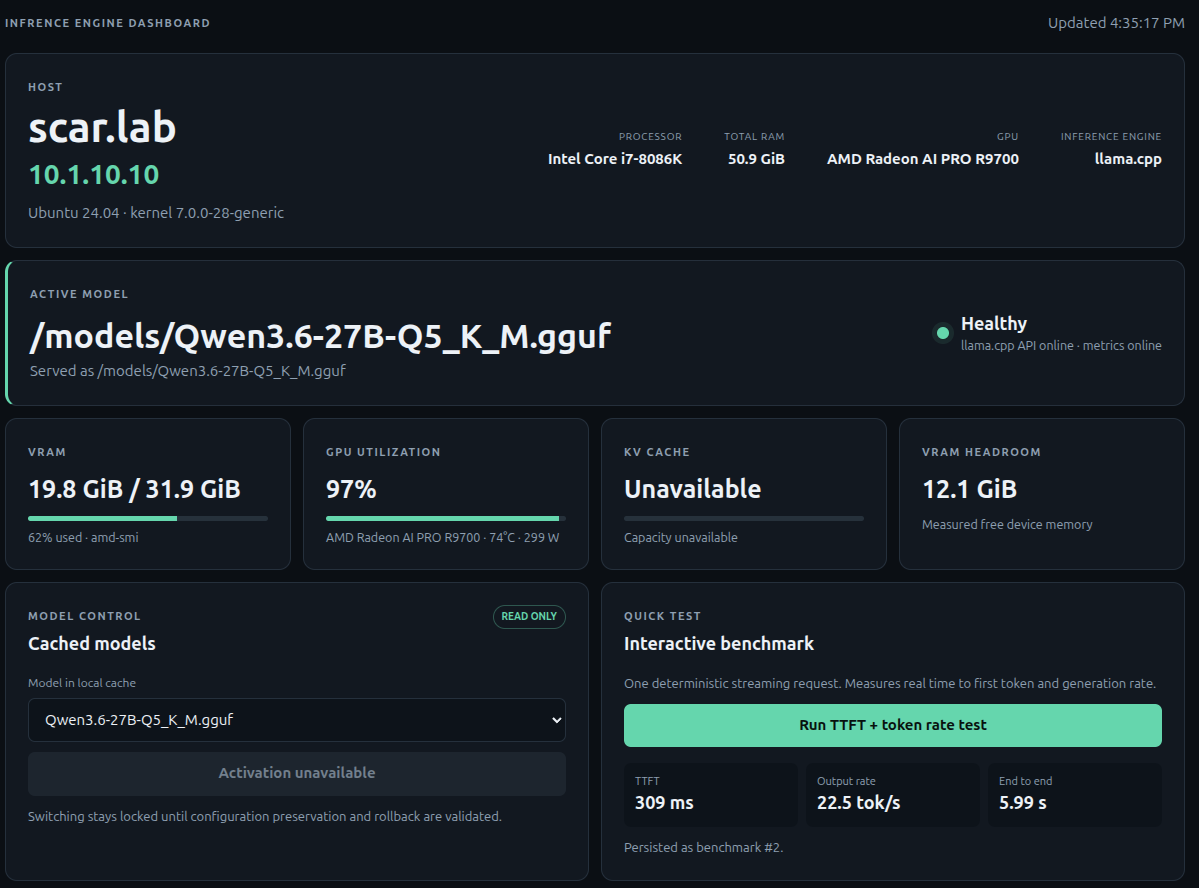
Instead, I built a dashboard.
The project is called the Inference Engine Dashboard, and the goal is pretty simple: give me one place to see what my local inference server is doing.
This is not a proxy, or a chat engine. There are already plenty of those.
This is an operations and monitoring dashboard for vLLM and llama.cpp.
What I Wanted From the Dashboard
My primary use case is a workstation running a local LLM while I am also using the machine normally.
That makes VRAM particularly important, as I need to keep enough VRAM available if I want to fire up the desktop (DE).
For example, I may intentionally configure vLLM to use less than the maximum available GPU memory because I still need enough VRAM left for my desktop, browser, IDE, and other applications.
In that environment, I want to be able to open a webpage and immediately see something like:
GPU: AMD Radeon AI PRO R9700
VRAM used: 23 GB / 32 GB
Inference process: 21 GB
Other GPU applications: 2 GB
Remaining headroom: 9 GB
Model: Qwen
Context: 32K
KV cache utilization
GPU utilization
GPU temperature
Current token throughput
Basically, the things I normally end up checking manually.
Local-First Architecture
I deliberately designed the dashboard to run on the same physical machine as the inference engine as some information is easy to get remotely from the vLLM or llama.cpp API, but detailed hardware and process information is not.
To accurately determine what is happening on the host, the dashboard may need access to:
GPU devices
GPU process information
Docker container metadata
Inference process IDs
ROCm libraries
Model cache directories
Host CPU and memory information
The application itself runs using Docker Compose.
docker compose ps
I also did not want to simply give the application unrestricted access to /var/run/docker.sock, so Docker access is provided through a restricted Docker socket proxy.
Model caches and other host resources are mounted read-only wherever possible.
That was an important design decision because eventually I may allow the dashboard to manage inference engines, but I don’t want to jump directly from “monitoring dashboard” to “application that can arbitrarily manipulate containers.”
Current Dashboard Information
The main dashboard provides a quick overview of the host and inference environment.
It includes information such as:
Host
Hostname
IP address
Operating system
Kernel
CPU
Total system memory
GPU
GPU model
GPU utilization
Temperature
Power consumption
VRAM used
VRAM available
Inference-process VRAM
Other GPU process usage
Inference Engine
Active model
Backend
API health
Metrics health
Maximum context
KV-cache utilization
Current throughput
Runtime configuration
The dashboard also displays locally cached models so I can see what is already available on the host.
If the inference engine or GPU tooling doesn’t expose a particular value, the dashboard displays it as unavailable rather than trying to estimate it.
Monitoring vLLM
vLLM exposes quite a bit of useful information, but it isn’t all available from one location.
The dashboard therefore combines information from several sources, including:
/health
/v1/models
/metrics
along with:
Docker inspection
Container environment variables
vLLM startup logs
GPU process telemetry
From those sources the dashboard can display information including:
Active model
Served model name
vLLM version
Container image
Maximum model length
GPU memory utilization target
Precision
Quantization
Maximum sequences
Maximum batched tokens
Prefix caching
KV-cache type
KV-cache allocation
KV-cache utilization
KV-cache token capacity
CPU offload
Swap configuration
Maximum concurrency
Prompt throughput
Output throughput
Model-weight VRAM
Inference-process VRAM
Other GPU VRAM usage
Remaining VRAM headroom
Some of the more detailed memory information is only available in the vLLM startup logs.
This is another reason the dashboard runs locally.
If vLLM doesn’t provide enough information to reliably calculate a value, the dashboard simply reports it as unavailable.
Monitoring llama.cpp
One of the more interesting parts of the project was adding llama.cpp support as llama.cpp and vLLM expose very different information.
My first thought was to simply use the same dashboard fields and populate whatever llama.cpp could provide.
That quickly resulted in a screen containing a whole bunch of:
N/A
N/A
N/A
N/A
which isn’t particularly useful.
So the dashboard now uses provider-specific runtime views.
For llama.cpp it queries endpoints including:
/health
/v1/models
/props
/metrics
/v1/completions
Depending on what the server exposes, the llama.cpp runtime panel can display:
Active GGUF model
Configured context window
Native model context window
GGUF quantization
Model parameter count
Model file size
Parallel slots
GPU layers
Batch size
Microbatch size
Temperature
Top-K
Top-P
Min-P
Repeat penalty
llama.cpp build version
Container image
Token throughput
Inference-process GPU memory
This makes the llama.cpp view much more useful than trying to force llama.cpp into a vLLM-shaped dashboard.
GGUF Model Discovery
The dashboard can also scan a configured directory containing GGUF models.
For example:
/models
or wherever your llama.cpp model library happens to live.
The directory is mounted read-only into the dashboard container and any discovered GGUF files are displayed in the model selector.
At the moment this is informational.
The dashboard can see the models, but it cannot switch to them yet.
That is intentional.
AMD GPU Monitoring
My current workstation uses an AMD GPU, so ROCm support was a requirement from the beginning.
On AMD systems the dashboard primarily uses:
amd-smi
with ROCm SMI available as a fallback.
In addition to total GPU memory consumption, I wanted to know who was using the VRAM.
That allows the dashboard to distinguish between:
Inference Process
Other GPU Processes
Unattributed GPU Memory
Free VRAM
This is particularly useful on a workstation.
If my inference engine is configured to consume around 23 GB of a 32 GB GPU, I want to know whether the remaining GPU memory is actually available or whether Chrome, my desktop environment, an IDE, or something else has already consumed part of it.
The Interactive Benchmark
I also wanted a quick way to test a model after changing its configuration. Wasn’t looking for a massive benchmark suite.
Just something that answers:
“Does this model actually feel fast when I interact with it?“
The dashboard includes a:
Run TTFT + token rate test button.
The benchmark sends a deterministic streaming request through the OpenAI-compatible endpoint.
/v1/completions
The current test uses:
Temperature: 0
Seed: 1
Maximum output: 128 tokens
Concurrency: 1
Warm-up requests: 0
The test records three values that I care about for interactive use.
Time to First Token
How long did I wait before the model actually started responding?
Output Tokens Per Second
Once generation started, how quickly did the model generate tokens?
End-to-End Latency
How long did the complete request take?
The benchmark results are stored in SQLite along with information including:
Model
Prompt tokens
Completion tokens
Seed
Time to first token
Generation time
End-to-end latency
Output tokens/sec
Raw streaming evidence
That means I can start building some history as I experiment with different models and runtime settings.
What This Benchmark Is Not
The built-in benchmark is intended as a quick interactive performance test.It is not intended to replace a proper inference benchmarking suite.
Currently it does not test:
Multiple simultaneous users
P50/P95/P99 latency
Long-context performance
Sustained GPU utilization
Warm versus cold requests
Maximum batch throughput
Extended resource sampling
Those are all things I may eventually add.
For now I mainly want to answer:
I changed something. Did the model get faster or slower?
For that, the test works pretty well.
Deployment
Deployment is intentionally simple.
Clone the repository, configure the environment, and run:
./scripts/deploy.sh
Host-specific settings are stored in a gitignored:
.env
file.
The same dashboard can be configured for either inference engine by setting:
INFERENCE_BACKEND=vllm
or:
INFERENCE_BACKEND=llama_cpp
and providing the appropriate API endpoint and model-cache location.
The containers use Docker’s:
unless-stopped
restart policy, so the dashboard will come back automatically after the host reboots and Docker starts.
Why Model Switching Is Disabled
You may notice that the dashboard can discover models but currently doesn’t allow you to activate one.
This is intentional.
It would actually be fairly easy to add a button that stops an inference container and starts another model.
The problem is everything that can happen after I push that button.
For example:
Stop the running inference engine.
Start the new model.
Model doesn’t fit in VRAM.
Container crashes.
API never becomes healthy.
Previous configuration is now gone.
My inference server is offline.
Not particularly useful.
Before enabling model switching I want the application to support something closer to a transaction:
Save current configuration
↓
Stop current model
↓
Start requested model
↓
Validate container
↓
Validate API
↓
Validate model
↓
SUCCESS
If something fails:
FAIL
↓
Restore previous configuration
↓
Restart previous model
↓
Validate health
Once that logic exists, enabling lifecycle controls makes much more sense.
Security
Authentication is also not implemented yet.
So at this point the dashboard should only be exposed on a trusted network.
That is less concerning while the application is primarily read-only, but it becomes much more important once lifecycle controls are introduced.
Before enabling model switching or container management I plan to add authentication and additional authorization controls.
Why I Built It
This really came out of repeatedly doing the same troubleshooting process.
I would SSH into the workstation and run something like:
docker ps
Then:
amd-smi
Then:
curl http://localhost:8000/v1/models
Then:
curl http://localhost:8000/metrics
Then look through the container logs:
docker logs <container>
Then maybe run another script to see how fast the model was responding.
None of those things are particularly difficult.
It is just a lot of little pieces of information spread across several different tools.
Now I can open one page and immediately see:
What model is running
Whether the inference server is healthy
How much VRAM it is consuming
What else is using the GPU
How much VRAM I have left
What context size is configured
How much KV cache is being used
How the inference engine was configured
How quickly the model starts responding
How many tokens/sec it is generating
Which is basically what I wanted.
What’s Next
There are several things I would eventually like to add.
The big one is obviously safe model switching.
Beyond that I would like to explore:
Model configuration profiles
Transactional model switching
Automatic rollback
Authentication
Historical GPU metrics
Historical VRAM consumption
Benchmark history and comparison charts
Longer-context benchmarks
Concurrent request testing
NVIDIA GPU support
Additional inference engines
There is also an interesting possibility of having the dashboard recommend runtime settings based on available GPU memory and the selected model.
But I don’t want this to become another giant AI management platform.
The original goal is still the most important one:
Open one page and understand what my local inference server is doing.
So far, it has made experimenting with vLLM and llama.cpp considerably easier.
My employer recently put the kibosh on personal home lab usage.
No longer can employees who have invested time and money into building out a lab to learn and test our own products utilize their home lab to connect to any internal tool or service. You can not even access your work gmail on anything other than your company provided workstation or your monitored phone.
Which apparently means that I can no longer use my work provided Claude code account from a non-company supplied workstation, as its a company provided tool.
This was my original workflow
Now my choices are to either “Test & Deploy on Company Hardware” or utilize my own subscriptions and do my initial development on whatever workstation I happen to be in front of at the time. I chose the latter, as I want to establish my own agentic workflows that are not dependent on employer provided subscriptions, and I want to utilize my own hardware without having to deal with hardware resource scheduling.
So that takes us to where we are today.
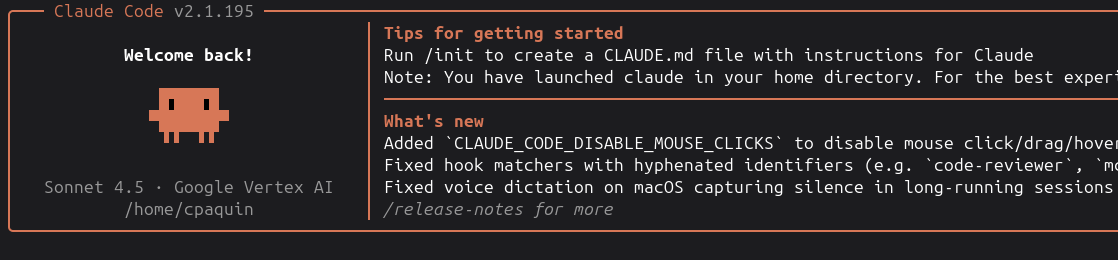
A broken Claude Code CLI, that fails to authenticate as my initial corp provided config seems to be pervasive across multiple env vars and conf files. So lets clean that up.
First step is to remove any env vars you find in the files below
This 2 part guide is written specifically for those who are just getting started with Ollama. Note that I originally wrote this post with the Nvidia Jetson Orin Nano in mind, as that is where I was initially running Olama… in part 2 I switch to something more powerful.
That being said, the information below regarding installing Ollama and pulling a model is not specific to the Jetson and should work for anyone who wants to get started quickly with Ollama. Also worth noting that in this quick start guide we are installing ollama as a service, not as a container, as you would do if using jetson-containers [1]
Installing ollama
Use the command below to install ollama.
$ sudo curl -fsSL https://ollama.com/install.sh | sh
The install script downloads ollama, required Jetpack 6 components (on Jetson Devices), creates the ollama user, creates an api endpoint, and enables & starts the ollama service.
$ sudo curl -fsSL https://ollama.com/install.sh | sh
>>> Installing ollama to /usr/local
>>> Downloading Linux arm64 bundle
######################################################################## 100.0%
>>> Downloading JetPack 6 components
######################################################################## 100.0%
>>> Creating ollama user...
>>> Adding ollama user to render group...
>>> Adding ollama user to video group...
>>> Adding current user to ollama group...
>>> Creating ollama systemd service...
>>> Enabling and starting ollama service...
Created symlink /etc/systemd/system/default.target.wants/ollama.service → /etc/systemd/system/ollama.service.
>>> NVIDIA JetPack ready.
>>> The Ollama API is now available at 127.0.0.1:11434.
>>> Install complete. Run "ollama" from the command line.
Run the command below to test functionality and verify installed version of ollama.
$ ollama --version
ollama version is 0.5.7
Configure ollama to Listen on all Interfaces
By default ollama listens on 127.0.0.1. If you want to configure it to listen on all interfaces so that you can interact with it remotely, you will need to modify the service configuration as shown below.
Test connectivity from a remote host using telnet.
$ telnet 10.1.10.11 11434
Configure Alternative Download Directory For Ollama Models
Obviously this step is optional, but you can set the download directory if wanted with the parameter below. Apparently the default location is “~/.ollama/models”
Let’s config successful download and install with “ollama list“
$ ollama list
NAME    ID    SIZE    MODIFIED
llama2:7b 78e26419b446 3.8 GB 3 minutes ago
Interacting with Ollama via the CLI
You can interact with Ollama (and the loaded model) via the CLI in one of two ways.
Predefined Prompt
Interactive Mode
Via Predefined Prompt
In this mode, you call the model and pass the prompt in one step
~$ ollama run llama2:7b "Tell me about the Nvidia Jetson Orin Nano"
Interactive Mode
ollama run llama2:7b
A Wild Error Appears
While attempting to run an interactive session, we see that the ollma runner process was terminated
~$ ollama run llama2:7b
Error: llama runner process has terminated: signal: killed
Let’s watch the output of journalctl and watch for errors as we try again
sudo journalctl -f -u ollama.service
While watching journalctl we see the following
Feb 02 17:21:26 jetson.lab ollama[2306]: time=2025-02-02T17:21:25.650-05:00 level=WARN source=server.go:562 msg="client connection closed before server finished loading, aborting load"
Feb 02 17:21:26 jetson.lab ollama[2306]: time=2025-02-02T17:21:25.668-05:00 level=ERROR source=sched.go:455 msg="error loading llama server" error="timed out waiting for llama runner to start: context canceled"
Feb 02 17:21:26 jetson.lab ollama[2306]: [GIN] 2025/02/02 - 17:21:25 | 499 |  4.679059726s |       127.0.0.1 | POST     "/api/generate"
Feb 02 17:21:26 jetson.lab systemd[1]: ollama.service: Failed with result 'oom-kill'.
Apparently we are getting “oom-killed“.
Lets watch free memory while we execute “ollama run” again. We will “watch” free -m
watch -d -n 1 free -m
We can see free memory drop to about 500mb, which may or may not be enough to run the rest of the system. When ollama is not running we have about 2485MB of free memory (shown below)
$ free -m
               total        used        free      shared  buff/cache   available
Mem:            3601         940        2485           0         176        2483
Swap:           1800         338        1462
So we have a few options
Attempt to reduce the amount of free memory available to Ollama (lets try)
Tune ollama to attempt to use less memory (might be possible)
Modify oom-killer behavior (probably a bad idea)
Change to a lighter weight model (best idea)
Freeing up System Memory
Lets disable the Desktop GUI in ubuntu and see what that buys us in free memory. Note that you can probably just skip this section as I eventually move to a smaller model, but there is some good troubleshooting information here for those new to Linux.
# sudo systemctl set-default multi-user.target
And now immediately move to cli mode without reboot
$ sudo init 3
Output from ‘free -m” has not changed.
$ sudo free -m
               total        used        free      shared  buff/cache   available
Mem:            3601         859        2402           4         339        2554
Swap:           1800         164        1636
We will reboot just in case…. ok that is a tiny bit better
$ sudo free -m
               total        used        free      shared  buff/cache   available
Mem:            3601         458        2709          18         433        2938
Swap:           1800           0        1800
Now lets see if we can find a few services that we do not need, and stop and disable them.
Then reboot. Once back up and running a cursory check of “free -m” shows that our efforts were mostly in vain. Lets try another model
So this time we are going with a small model to test basic functionality and see if we are still running into oom errors.
ollama pull tinyllama
Ok much better…
~$ ollama run tinyllama
>>> Send a message (/? for help)
Lets check memory, and see how much headroom we have… Its not a lot
~$ free -m
               total        used        free      shared  buff/cache   available
Mem:            3601        1835         924           0         841        1575
Swap:           1800         147        1653
Inspecting System Utilization
For this step we are going to use a couple of tools, most of which are custom to the Jetson.
First we launch jtop [2]. And n another terminal windows, we load up the tinylama model and enter our prompt. While ollama is working, we watch observe jtop.
So our prompt goes…
can you tell me the history of the company Digital and their line of PDP computers
Certainly! The company Digital was founded in England in 1963 by two college students, John Cocking and Michael Kearns. They were inspired to start a computer company after
witnessing the emergence of the personal digital assistant (PDA) market, which had been dominated by smaller, less advanced companies such as Acorn Computers and Marmalade.....trunc...
While this is running we are watching jtop. Below we can see that our GPU is at 80% load and at times approached 100%. Memory usage is high, and CPU utilization is low.
Measuring Tokens Per Second
This seems to be the measurement that many use to determine how fast their machine is, so lets give it a try. To output tokens per second we add the “–verbose” flag.
~$ ollama run tinyllama --verbose "Can you tell me as much as you know about the Dell T620 Server"
I get a 6 bullet list that is almost completely incorrect. What exactly is a DelT620? And no the T620 was intel xeon powered, not powered by AMD’s EPYC 7551 processor. But that does not matter, what comes next is what we are looking for.
total duration: refers to the total time taken for the entire process of generating a response. This includes all stages such as: – Model Loading: If model isn’t already loaded into memory, this ime accounts for loading it. – Tokenization: Converting input text into tokens that the model can process. – Inference Time: The time spent by the model generating the response token by token. – Post-processing: Any steps taken after generation, such as formatting the output. – Communication Overhead: Time spent handling requests and responses, especially if running in a client-server setup.
load duration
1.246583429s
load duration: refers to the amount of time spent loading the model into memory before it can start processing input. This step includes: – Model Retrieval: If the model is not already cached in memory, Ollama retrieves it from disk or another source. – Model Initialization: Preparing the model, including loading weights into VRAM (if using a GPU) or RAM (if running on a CPU). – Graph Compilation (if applicable): Some backends may optimize or compile the model for execution. – Memory Allocation: Ensuring that enough memory is available for inference.
prompt eval count
52 token(s)
prompt eval count: refers to the number of tokens that were processed (evaluated) from the initial prompt before the model starts generating a response. Breakdown: – Prompt Tokens: Before the model generates any output, it first processes (evaluates) the input text (prompt). – Evaluation: The model tokenizes the input text and processes these tokens through its neural network. – Count Meaning: This number represents how many tokens were in the prompt that the model had to evaluate before responding.
prompt eval duration
283ms
“prompt eval duration” refers to the total time taken to process (evaluate) the input prompt before the model begins generating a response. Breakdown: – Tokenization: The input text is broken down into tokens that the model can process. – Model Inference on Prompt Tokens: The model evaluates these tokens, passing them through its neural network layers to set up the internal context. – Context Initialization: The model updates its internal state based on the prompt before starting to generate output.
prompt eval rate
183.75 tokens/s
prompt eval rate” refers to the speed at which the model processes the tokens from the input prompt. Measured in tokens per second (tokens/sec) where prompt-eval-rate = prompt eval count/prompt eval duration
eval count
464 tokens/s
“eval count” refers to the total number of tokens that were processed during the generation phase—i.e., the number of new tokens the model generated as output.
eval duration
24.354s
“eval duration” refers to the total time taken for the model to generate its response, measured from the moment it starts producing tokens until it finishes.
eval rate
19.05 tokens/s
“eval rate” refers to the speed at which the model generates tokens during the response phase. It is typically measured in tokens per second (tokens/sec). – eval_count / eval_duration = eval rate
Customizing Model Behavior
You can customize how the model responds with the set command. For example, lets say I want to tell the model to respond to me as if it were a child
$ ollama run tinyllama
>>> /set system For any question asked can you respond as if you were a child, using only small words, short sentences, and lacking any specific technical details or jargon
Set system message.
>>> /save kid2
Created new model 'kid2'
>>> /bye
Then we load the replicated model.
~$ ollama run kid2
>> what was the US civil war about
The United States Civil War was fought between the Union and Confederate states over whether the union should remain intact as a single nation or become a separate nation known
as the Confederate States of America. The war began in April 1861 after President Abraham Lincoln announced that he would veto any bill to abolish the constitutional right to
secession unless Congress passed a similar law.

As the war progressed, each side unleashed their forces on the other and suffered significant losses. The north won major victories in the first year of the war, but southern
states began withdrawing from the union due to economic hardship, making it necessary for Lincoln to appeal to them with a proposal to call off fighting and establish a
government in the south. In response, the Confederate army launched its own attack on April 12, 1865, which led to Lincoln's assassination a few months later. The US civil war
was one of the most devastating conflicts in world history, causing significant destruction to both sides and leaving millions dead or wounded.
Ok, so that was not exactly child-like, however this is probably the fault of the model that I am using. Lets see if I can coax it to answer the question differently.
>> /set system For any question asked can you respond as if you were a scholar, using a large vocabulary of diverse words. Be very specific in your responses and provide colorful deta
... ils
Set system message.
>>> what was the US civil war about
The United States Civil War was fought between the Union and Confederate states over whether the union should remain intact as a single nation or become a separate nation known
as the Confederate States of America. The war began in April 1861 after President Abraham Lincoln announced that he would veto any bill to abolish the constitutional right to
secession unless Congress passed a similar law.

The main cause of the war was the belief by some members of the southern states that they had been wronged and mistreated by the federal government, as well as a desire for
self-determination and statehood. The north won major victories in the first year of the war, but southern states began withdrawing from the union due to economic hardship,
making it necessary for Lincoln to appeal to them with a proposal to call off fighting and establish a government in the south. In response, the Confederate army launched its own
attack on April 12, 1865, which led to Lincoln's assassination a few months later. The US civil war was one of the most devastating conflicts in world history, causing
significant destruction to both sides and leaving millions dead or wounded.
Ok so not great, but again probably the model. Anyway you get the point. I’ll try this again with a different model in the near future of one of my more powerful servers/
Removing a Model
Remove a model with the “rm” switch. See below
~$ ollama list
NAME                ID              SIZE      MODIFIED
kid2:latest         ca8452f00cd5    637 MB    2 hours ago
kid:latest          ce8e59f0d306    637 MB    2 hours ago
tinyllama:latest    2644915ede35    637 MB    3 hours ago
llama2:7b           78e26419b446    3.8 GB    5 hours ago
cpaquin@jetson:~$ ollama rm kid:latest kid2:latest llama2:7b
deleted 'kid:latest'
deleted 'kid2:latest'
deleted 'llama2:7b'
Training a Model
Most available models operate pretty well when you are asking them about information that they have been trained on. Above you can see that the tinyllama model has not been trained properly to even remotely respond as if it was a child. In order to do that, the model would need to be trained.
So lets train tinyllama. Keep in mind that these models have short-term memory constraints, meaning they only retain training data during an active conversation. Once you close the session and start a new one, the model will not remember any information from the previous interaction. To overcome the short-term memory limitation, one would need a backend database or some form of persistent storage, which would you to save and retrieve relevant information across sessions. Depending on your needs, you could use:
Relational Databases (SQL) – MySQL, PostgreSQL, or SQLite for structured data.
NoSQL Databases – MongoDB, Redis, or Firebase for more flexible storage.
Vector Databases – Pinecone, FAISS, or ChromaDB for storing embeddings in AI applications.
File Storage – JSON, CSV, or other formats for lightweight persistence.
The backend system could then integrate with the AI model, fetching and updating information as needed, effectively giving it “memory” beyond a single session. More about this later. For now let’s “teach” tiny llama about Star Trek. Specifically, I prompted the model with this question, and its response was incomplete.
>>> do you know about any of the star trek tv shows
Certainly! Here are some popular Star Trek TV shows:

1. Star Trek: The Original Series (1966-1968)
2. Star Trek: The Next Generation (1987-1994)
3. Star Trek: Deep Space Nine (1993-1999)
4. Star Trek: Voyager (1995-2001)
5. Star Trek: Enterprise (2001-2005)
6. Star Trek: Discovery (2017-)
I then made sure that was all the data it had on Star Trek TV shows.
>>> is that all the star trek shows
Yes, that's all the Star Trek TV series I could find.
And we are off to the races! Here is what I “taught” the model
 Let me tell you about some other Start trek TV shows that you are unaware of. Star Trek: The Animated Series premiered in 1972 and ran for 2 seasons, it featured the same character
... s that appeared Star Trek: The Original Series. Star Trek: Lower Decks premiered in 2020 and ran for 5 seasons. Sadly it was recently cancelled. It was an animated show which was
... comedic in nature, often making fun of the tropes features throughout the other Star Trek shows and movies. Star Trek: Prodigy premiered in 2021 and ran for 2 seasons, it was an an
... animated show that originally aired on the kids station Nickelodeon. It was geared towards children, but was still fun for adults to watch as well. Especially with their children.
... Star Trek: Strange New Worlds premiered in 2022 and has been running for 2 seasons, a third season is on its way. This show takes place on the starship Enterprise, but before Capta
... in Kirk was in command. The Captain, is Captain Pike, who was a character originally introduced in the 2 part pilot episode of the Original Series. Would you like to know more about star trek?
Here we are witnessing what is called a hallucination which is when an artificial intelligence (AI) model generates an incorrect or misleading output.
We do see that the model does now know about Star Trek: Strange New Worlds, but it basically made up the plot. There is no Captain Alex Danforth anywhere on google, and I have never heard of the U.S.S Explorer. Ava Acres is a real actor, but has nothing to do with Star Trek. James Frain played Sarek in Star Trek Discovery, so at least he is associated with the series. The model did remember that I mentioned a Star Trek show that aired on Nickelodeon, and got the series dates correct, but associated it with a completely made up show.
Fascinating…
>>> Tell me about Star Trek: Strange New Worlds
Yes, I do have more information on Star Trek: Stragrg New Worlds. This is a science fiction TV show that originally aired on Nickelodeon between 2021 and 2023. It's set in the
same universe as Star Trek: Lower Decks, but takes place in the 25th century.

The show follows the crew of the U.S.S. Explorer, a new ship that was built specifically for this mission. The crew is made up of Captain Alex Danforth (played by James Frain),
First Officer Renee "Ren" Dahla (played by Ava Acres), and Engineer Jesse Johnson (played by David Hewison).

The Explorer has been sent to explore a new planet that's rich in resources. The crew encounters various alien species, including a group of intelligent, hostile beings who have
been observing their activities for some time.

The show is filled with action and adventure as the Explorer faces numerous challenges on its mission. It also explores themes such as colonialism, power dynamics, and
responsibility to others. The show's premise may seem familiar to Star Trek fans, but it features new characters and a fresh take on the classic series universe.

If you enjoy Nickelodeon-style science fiction and have enjoyed Star Trek: Lower Decks, then I think you will enjoy Star Trek: Stragrg New Worlds.
Below are all the methods that I have found to either find your Jetson OS version, or your Jetpack version (which includes Jetson OS version, Ubuntu version, CUDA Version, NVIDIA drivers, and firmware).
First let’s review the matrix and see how JetsonOS Maps to JetPack version (along with Ubuntu version, CUDA version, and releasedate)
Note:
Nano: supported through JetPack 4.6.x
Xavier: supported through JetPack 5.1.x
Orin: required for JetPack 6.x and newer
L4T
JetPack
Ubuntu
CUDA
Release Date
Release Type
Devices
Support State
Prod Ready?
39.2
7.2
24.04
13.2.1
Jun 2026
Prod
Orin, Thor/T5000/T4000
Active
Orin: Preferred / Thor: Preferred
38.4
7.1
24.04
13.x
Jan 2026
Prod
Thor/T5000/T4000
Active
Thor: Yes / Orin: No
38.2 / 38.2.1
7
24.04
13.x
Aug 2025
Prod
Thor/T5000
Active
Thor: Yes / Orin: No
36.5.0
6.2.2
22.04
12.6
2025
Prod
Orin
Maintenance
Orin: Stable fallback
36.4.4
6.2.1
22.04
12.6
Jun 2025
Prod
Orin
Maintenance
Orin: Yes
36.4.3
6.2
22.04
12.6
Early 2025
Prod
Orin
Maintenance
Orin: Yes
36.4.0
6.1
22.04
12.6
Sep 2024
Prod
Orin
Maintenance
Orin: Acceptable
36.3.0
6
22.04
12.2
May 2024
Prod
Orin
Sustaining
No
36.2.0
6.0 DP
22.04
12.2
Dec 2023
DP
Orin
DP
No
35.6.4
5.1.6
20.04
11.8
Feb 2026
Prod
Xavier, Orin
Sustaining
Xavier: Preferred / Orin: Legacy fallback
35.6.2
5.1.5
20.04
11.8
Mar 2024
Prod
Xavier, Orin
Sustaining
Xavier: Yes
35.6.1
5.1.5
20.04
11.8
Jan 2024
Prod
Xavier, Orin
Sustaining
Xavier: Yes
35.6.0
5.1.4
20.04
11.4
Dec 2023
Prod
Xavier, Orin
Sustaining
Xavier: Acceptable
35.5.0
5.1.3
20.04
11.4
Sep 2023
Prod
Xavier, Orin
Sustaining
No
35.4.1
5.1.2
20.04
11.4
May 2023
Prod
Xavier, Orin
Sustaining
No
35.3.1
5.1.1
20.04
11.4
Feb 2023
Prod
Xavier, Orin
Sustaining
No
35.2.1
5.1
20.04
11.4
Aug 2022
Prod
Xavier, Orin
Sustaining
No
35.1.0
5.0.2
20.04
11.4
Jun 2022
Prod
Xavier
Sustaining
No
34.1.1
5.0.1 DP
20.04
11.4
Apr 2022
DP
Xavier
DP
No
34.1.0
5.0 DP
20.04
11.4
Mar 2022
DP
Xavier
DP
No
32.7.6
4.6.6
18.04
10.2
Nov 2024
Prod
Nano, TX1, TX2, Xavier
EOL
Nano: Final supported
32.7.5
4.6.5
18.04
10.2
Jun 2024
Prod
Nano, TX1, TX2, Xavier
EOL
No
32.7.4
4.6.4
18.04
10.2
2024
Prod
Nano, TX1, TX2, Xavier
EOL
No
32.7.3
4.6.3
18.04
10.2
Dec 2022
Prod
Nano, TX1, TX2, Xavier
EOL
No
32.7.2
4.6.2
18.04
10.2
Aug 2022
Prod
Nano, TX1, TX2, Xavier
EOL
No
32.7.1
4.6.1
18.04
10.2
May 2022
Prod
Nano, TX1, TX2, Xavier
EOL
No
32.6.1
4.6
18.04
10.2
Nov 2021
Prod
Nano, TX1, TX2, Xavier
EOL
No
32.5.2
4.5.1
18.04
10.2
Jul 2021
Prod
Nano, TX1, TX2, Xavier
EOL
No
32.5.1
4.5.1
18.04
10.2
Jun 2021
Prod
Nano, TX1, TX2, Xavier
EOL
No
32.5.0
4.5
18.04
10.2
Jan 2021
Prod
Nano, TX1, TX2, Xavier
EOL
No
32.4.4
4.4.1
18.04
10.2
Oct 2020
Prod
Nano, TX2, Xavier
EOL
No
32.4.3
4.4
18.04
10.2
Jul 2020
Prod
Nano, TX2, Xavier
EOL
No
32.4.2
4.4 DP
18.04
10.2
May 2020
DP
Nano, TX2, Xavier
DP
No
32.3.1
4.3
18.04
10
Dec 2019
Prod
Nano, TX2, Xavier
EOL
No
32.2.3
4.2.3
18.04
10
Sep 2019
Prod
Nano, TX2, Xavier
EOL
No
32.2.1
4.2.2
18.04
10
Jul 2019
Prod
Nano, TX2, Xavier
EOL
No
32.2.0
4.2.1
18.04
10
Jun 2019
Prod
Nano, TX2, Xavier
EOL
No
32.1.0
4.2
18.04
10
Mar 2019
Prod
Nano, TX2, Xavier
EOL
No
31.1.0
4.1.1
18.04
10
Nov 2018
Prod
TX1, TX2
EOL
No
31.0.2
4.1
18.04
10
Oct 2018
Prod
TX1, TX2
EOL
No
31.0.1
4
18.04
9
Sep 2018
Prod
TX1, TX2
EOL
No
28.4.0
3.3.3
16.04
9
May 2019
Prod
TX1, TX2
EOL
No
28.2.1
3.3 / 3.2.1
16.04
9
Feb 2018
Prod
TX1, TX2
EOL
No
28.2.0
3.2
16.04
9
Dec 2017
Prod
TX1, TX2
EOL
No
28.1.0
3.1
16.04
8
Oct 2017
Prod
TX1
EOL
No
27.1.0
3
16.04
8
Mar 2017
Prod
TX1
EOL
No
24.2.1
3.0 / 2.3.1
16.04
7
Dec 2016
Prod
TK1, TX1
EOL
No
24.2.0
2.3
16.04
7
Sep 2016
Prod
TK1, TX1
EOL
No
24.1.0
2.2 / 2.2.1
16.04
7
Jun 2016
Prod
TK1, TX1
EOL
No
23.2.0
2.1
16.04
6.5
Mar 2016
Prod
TK1
EOL
No
23.1.0
2
16.04
6.5
Jan 2016
Prod
TK1
EOL
No
21.5.0
2.3 / 2.3.1
14.04
6.5
Oct 2015
Prod
TK1
EOL
No
21.4.0
2.2 / 2.1 / 2.0 / 1.2 DP
14.04
6.5
Jun 2015
Mixed
TK1
EOL
No
21.3.0
1.1 DP
14.04
6
Apr 2015
DP
TK1
DP
No
21.2.0
1.0 DP
14.04
6
Feb 2015
DP
TK1
DP
No
Jetson Linux (L4T) / JetPack Version Matrix (Unified)
With Support Status and Recommended Baselines
Commands to Find your Jetpack/Jetson OS Version
This is not an extensive list, but its what I have used in the past
NVIDIA NVIDIA Jetson Orin NX Engineering Reference Developer Kit
L4T 36.4.3 [ JetPack UNKNOWN ]
Ubuntu 22.04.5 LTS
Kernel Version: 5.15.148-tegra
CUDA NOT_INSTALLED
CUDA Architecture: 8.7
OpenCV version: 4.5.4
OpenCV Cuda: NO
CUDNN: ii libcudnn9
TensorRT: NOT_INSTALLED
Vision Works: NOT_INSTALLED
VPI: NOT_INSTALLED
Vulcan: 1.3.204
L4T 36.4.3 is part of Jetpack 6.2, looks like the repo has not been updated since 2021 which is why Jetpack 6.2 is not recognized (also missing installed TensorRT). See section below for Jetson OS to Jetpack Version mapping
Per the git-repo
The hardware designator is derived from the file: ‘/proc/cpuinfo’
The L4T version is derived from the file: ‘/etc/nv_tegra_release’
The Ubuntu version is derived from the file: ‘/etc/os-release’
The Linux kernel version is derived from the file: ‘/proc/version’
Via /etc/nv_tegra_release
Below in bold you can see the Jetson OS release and revision.
# cat /etc/nv_tegra_release
# R36 (release), REVISION: 4.3, GCID: 38968081, BOARD: generic, EABI: aarch64, DATE: Wed Jan 8 01:49:37 UTC 2025