
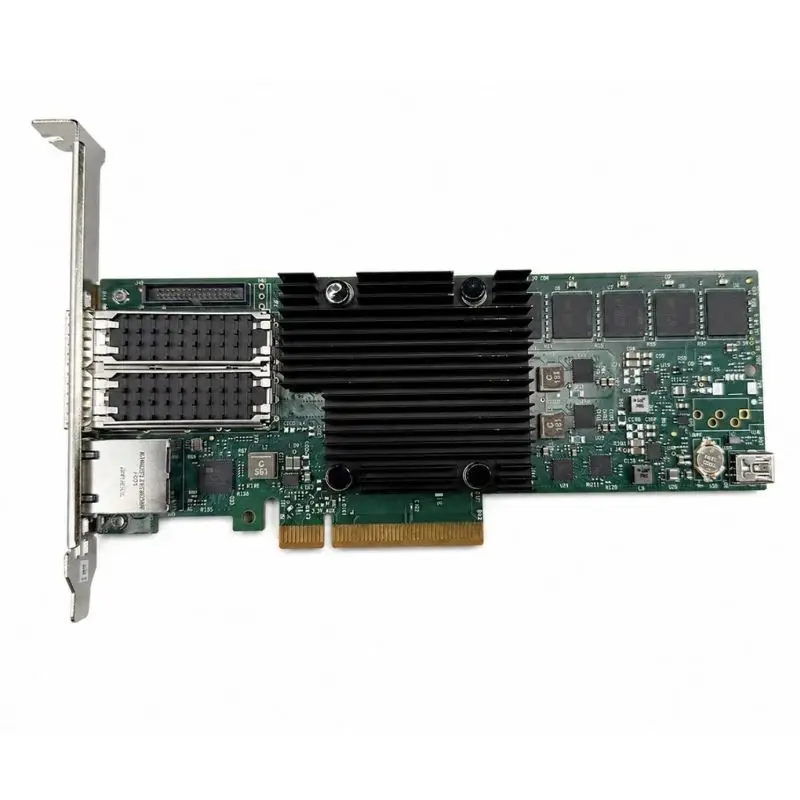
The NVIDIA BlueField-2 (BF2) is a Data Processing Unit (DPU), a smart NIC that combines a ConnectX-6 Dx network adapter with an embedded Arm processor (up to 8 Cortex-A72 cores) and dedicated hardware accelerators.
Instead of just passing packets like a standard NIC, a BF2 runs its own independent Linux operating system (Ubuntu in NVIDIA’s standard BF-Bundle) on the card itself. This allows it to offload, accelerate, and isolate networking, storage, and security tasks away from your host server’s main CPU.
Pretty cool stuff, and I’m starting to see more and more of these utilized across different environments for various reasons (LLM sandboxing being most interesting right now), so wanted to get my hands on one for homelab usage. Was not about to break the bank on a BF3, so figured a couple BF2s off ebay would allow me to dip my toes a bit (one was DOA, sad).
Details/Features
Before we jump into setup, let’s get to know my BF2 NPU, the MBF2H332A-AECOT.
Part Number and Specs
- Form factor: Half-height, half-length card with a full-height bracket.
- Host interface: PCIe Gen4 x8. In my R730 it negotiated Gen3 x8.
- Ports: Two 25 GbE SFP56 data ports and a separate 1 GbE RJ45 management port.
- Compute and storage: P-Series Arm cores at 2.5 GHz, 16 GB DDR4 and 64 GB eMMC.
- Features on this SKU: Crypto and hardware Secure Boot capability. Arm OS Secure Boot is configurable in the card’s UEFI.
Core Capabilities
- Embedded Compute: Runs a separate OS on the card’s Arm cores, with its own 1 GbE management port and IP address. The Arm and host systems communicate over PCIe. Isolation depends on the DPU mode and the privileges assigned to the host.
- Hardware Acceleration: Can offload supported Open vSwitch flows and accelerate networking, cryptography and storage workloads. The available offloads depend on the software and configuration.
- Operating Modes: Can run in DPU Mode (default, where the Arm cores own the physical ports and manage the host) or NIC Mode (disables the Arm cores so it acts like a standard high-speed ConnectX-6 NIC).
Libvirt/KVM Capabilities
On a KVM/libvirt host, the BF2 acts as a hardware-accelerated virtual switch and storage controller for your virtual machines:
- SR-IOV Virtual Functions (VFs): Slice the physical ports into dozens of isolated VFs and pass them directly into libvirt VMs for near-bare-metal throughput and ultra-low latency.
- OVS Hardware Offload (ASAP²): Run Open vSwitch on the BF2’s Arm cores instead of the host CPU. The card programs flow rules directly into its embedded eSwitch hardware, so supported flows can be forwarded and filtered in hardware. Other flows still need software handling.
- Emulated NVMe Storage (SNAP): Present remote network storage (like Ceph or NVMe-oF targets) to the host as local PCIe NVMe block devices. The host can use the presented NVMe device to back VM storage. Setup depends on the SNAP version and storage backend.
- Host-Isolated Security: Enforce stateful firewalling, connection tracking, and IPsec tunnel encryption on the DPU itself. What a compromised host can change depends on the DPU’s privilege and network configuration.
Kubernetes Capabilities
In Kubernetes environments, the BF2 decouples cluster infrastructure from application worker nodes:
- OVN-Kubernetes: DPU offload depends on the operator, hardware and software versions. NVIDIA documents BlueField-3 for DPF. Full OVN-Kubernetes offload on this BF2 is still an experiment for later. NVIDIA DPF platform support
- High-Speed Pod Networking: Inject SR-IOV VFs directly into pods (via Multus and the SR-IOV Network Operator) for workloads that need direct access to a network device. Check which CNI and network policies apply to the VF.
- Policy offload: A compatible datapath can enforce some filtering and encryption on the card. I’ll test what’s available for my OKD and KubeVirt setup later.
- Infrastructure Isolation: The dedicated out-of-band port gives the Arm OS a management path separate from the worker’s normal network.
Setup & Configure
First I start by installing into a PCIe slot on a Dell R730, cabling the card’s 1 GbE management interface to my mgmt switch, and firing up the server. My router shows the device has requested and received an address via DHCP. The DPU’s management port responded to SSH, and the card was still running the previous owner’s Ubuntu 20.04. I chose to wipe it and install my own Ubuntu 24.04 image as the current credentials are unknown to me and the installed Ubuntu verision is quite old.
Ubuntu Detection/Setup
Back on our running host system (Dell R720 – Prometheus) we first need to make sure that the OS sees the card and identify its PCIe address.
lspci | grep -i Blue05:00.0 Ethernet controller: Mellanox Technologies MT42822 BlueField-2 integrated ConnectX-6 Dx network controller (rev 01)05:00.1 Ethernet controller: Mellanox Technologies MT42822 BlueField-2 integrated ConnectX-6 Dx network controller (rev 01)05:00.2 DMA controller: Mellanox Technologies MT42822 BlueField-2 SoC Management Interface (rev 01)
Now that the card is detected, let’s check all three PCIe functions.
lspci -nnk -s 05:00
In the output, functions 05:00.0 and 05:00.1 are the network ports. Function 05:00.2 is the SoC management interface.
Now lets get the firmware version via ethtool.
ethtool -i enp5s0f0np0driver: mlx5_coreversion: 7.0.0-44-genericfirmware-version: 24.35.1012 (MT_0000000541)expansion-rom-version: bus-info: 0000:05:00.0supports-statistics: yessupports-test: yessupports-eeprom-access: nosupports-register-dump: nosupports-priv-flags: yes
I started with Ubuntu’s rshim package and screen to identify the card and reach its serial console. Installing NVIDIA’s doca-installer later upgraded RShim from 2.5.7 to 2.9.3.
sudo apt updatesudo apt install rshim screensudo systemctl enable --now rshim
The rshim package is a driver (primarily running in user space on modern Linux distributions, or as kernel/bus drivers on other platforms) that lets a host system communicate with and manage NVIDIA BlueField Data Processing Unit (DPU) System-on-Chip (SoC) hardware over PCIe or USB.
Now we need to check to make sure that RShim has attached to the right card and the service has started.
$ systemctl is-active rshimactive$ systemctl is-enabled rshimenabledcpaquin@prometheus:~$ command -v bfb-install/usr/sbin/bfb-install$ sudo ls -l /dev/rshim0total 0crw------- 1 root root 508, 0 Nov 24 18:25 bootcrw------- 1 root root 507, 0 Nov 24 18:25 consolecrw------- 1 root root 506, 0 Nov 24 18:25 misccrw------- 1 root root 509, 0 Nov 24 18:25 rshim$ sudo cat /dev/rshim0/miscDISPLAY_LEVEL 0 (0:basic, 1:advanced, 2:log)BOOT_MODE 1 (0:rshim, 1:emmc, 2:emmc-boot-swap)BOOT_TIMEOUT 300 (seconds)USB_TIMEOUT 40 (seconds)DROP_MODE 0 (0:normal, 1:drop)SW_RESET 0 (1: reset)DEV_NAME pcie-0000:05:00.2DEV_INFO BlueField-2(Rev 1)OPN_STR N/AFORCE_CMD 0 (1: send Force command)
Download and verify the Ubuntu Arm bundle
Navigate to https://developer.nvidia.com/doca-downloads?deployment_platform=BlueField
Choose the BF-Bundle in BFB format for the PCIe RShim install. It replaces the Arm OS and includes DOCA and firmware. BF-FW-Bundle is just for firmware updates. The screenshot below shows the 3.6 download selector.

FYI – DOCA stands for Data Center on a Chip Architecture. It’s NVIDIA’s software platform for BlueField cards. It includes libraries, drivers, and tools for using the card’s networking, security, and storage acceleration.
So, In a nutshell…
- Ubuntu is the operating system we will SSH into on the BlueField’s Arm cores.
- DOCA is the software that lets applications use what the BlueField hardware can do. For example, a virtual switch
can use the card to forward and filter VM traffic in hardware, freeing up CPU time on Prometheus.
Copy the BFB to the Ubuntu host with scp and compare sha256sum against the checksum NVIDIA publishes for that exact filename. My target is rshim0.
Configure NVIDIA’s DOCA 3.6 APT repo
This is the NVIDIA host-side repository I used on Ubuntu 26.04 x86-64.
  repo=https://linux.mellanox.com/public/repo/doca/3.6.0/ubuntu26.04/x86_64
  curl -fsSL "$repo/doca_keyring.gpg" -o /tmp/doca-3.6-keyring.gpg &&
    sudo install -D -m 0644 /tmp/doca-3.6-keyring.gpg /etc/apt/keyrings/doca-3.6.gpg

  printf 'deb [arch=amd64 signed-by=/etc/apt/keyrings/doca-3.6.gpg] %s/ ./\n' "$repo" |
    sudo tee /etc/apt/sources.list.d/doca-3.6.list >/dev/null
Install the doca-installer
Run the command below
sudo apt-get updateapt-cache policy doca-installer rshimsudo apt-get install doca-installer
Run the Install
This erases the BlueField’s Arm OS. I left its 1 GbE management cable plugged during provisioning. The host stayed connected to the LAN, and RShim carried the image over PCIe.
sudo doca-installer -b "$HOME/bf-bundle-3.2.3-33_26.06_ubuntu-24.04_64k_prod.bfb" -r rshim0
Follow RShim in a second host terminal. DOCA Installer prints a fresh log directory on each run. Use the directory from the current invocation.
sudo journalctl -fu rshim
Screen opens the Arm serial console. The installer can restart RShim and close existing console sessions. If another terminal is already capturing the serial output, follow that capture file. To detach Screen, press Ctrl+A and then D.
sudo screen /dev/rshim0/console 115200
On the first attempts, the transfer timed out. The serial console showed the installer kernel failing to start. We have an issue. Second attempt failed as well. Time to troubleshoot.
Issues with Secure Boot
Initial install attempt with the 3.6.0 image timed out attempting to transfer the image to the NIC. So I attempted an older image (3.2.3). However the 2nd image timed out in early testing. So the issue did not seem to be OS image related (bad image, incompatible image).
Specifically, the 3.2.3 run stalled near 28 MiB after UEFI decompressed the installer kernel. The console printed Failed to boot 'Linux from rshim'. A bit of research on the card itself showed that the card’s UEFI signature database lacked the NVIDIA EFI Signing 2022-A certificate used by the 3.2.3 kernel. Its Canonical signature also failed verification against the enrolled certificates.

- I opened Screen, reset the card and pressed Esc twice at the BlueField UEFI prompt.
- In Device Manager → Secure Boot Configuration, I cleared Attempt Secure Boot. The current state still showed Enabled.
- I reset the BlueField again and checked the console for
Current Secure Boot State: disabled. The Platform Key stayed enrolled and the R730 stayed up.
printf 'SW_RESET 1\n' | sudo tee /dev/rshim0/misc >/dev/null

The exact same checksum-verified BFB then reached EFI stub: Booting Linux Kernel... and started writing Ubuntu to eMMC. It sat at Extracting /... for several minutes before continuing.

The installer finished and the card booted Ubuntu 24.04.4 LTS from eMMC. The NIC flash contains firmware 24.47.3576, while host-side MFT still reports 24.35.1012 running. Firmware activation is a separate step which requires a reboot/reset of the NIC

So at this point, UEFI Secure Boot is off on this card. The installer applied a UEFI signature-database update on the first restart, and 3.2.3 install wrote NIC firmware 24.47.3576.
BF2 Management Interfaces
The BF2 has 2 management interfaces, one internal to the card and accessible via the host device (R730 in this case) and the one that is externally accessible via the 1Gbe interface.
The freshly installed BlueField2 (on 3.2 currently) by default had 192.168.100.2/30 configured on its internal interface, so in order to connect to it locally, I had to add an IP address on the host Dell R730
sudo ip addr add 192.168.100.1/30 dev tmfifo_net0
Then add route and ping test.
ip -4 route get 192.168.100.2ping -I tmfifo_net0 -c 2 192.168.100.2
This temporary address allowed me to ssh directly to the BF2 card and change the default creds from ubuntu/ubuntu.
ssh ubuntu@192.168.100.2
The 192.168.100.1 address I added on Prometheus (the R730) is temporary. For now the subnet is a /30 with only 4 usable addresses ( Network, Host, BF2, Broadcast), we will adjust later as we plan to have a 2nd BF2 installed in this machine in the near future.
The BlueField’s physical 1 GbE management port will use its own LAN address. Which we can see in the output below. As stated earlier I configured this address as a static reservation on my router.
Specifically we see (via Ubuntu on the BF2)
- tmfifo_net0
- oob_net0

Now that I am able to login to the card, I can confirm that SecureBoot is still disabled.
$ mokutil --sb-stateSecureBoot disabled
Leave a Reply